Manage users
This guide covers the Team Settings, specifically how to manage workspace members: inviting new users, assigning roles, and controlling access.
To access team settings, click your profile avatar in the bottom-left corner of the sidebar.
Invite new users
Navigate to Settings → Members to view and manage all users in your workspace.
Click the + Invite button in the top-right corner of the Members page.
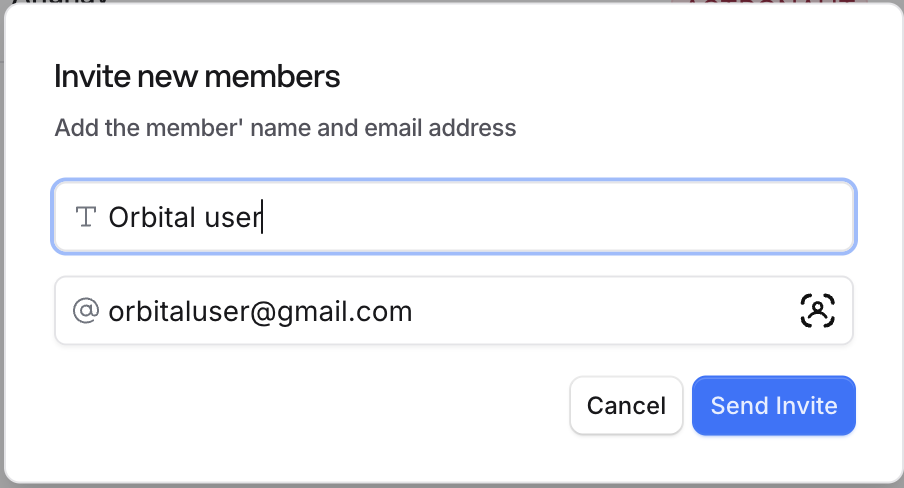
In the dialog that appears, enter the new member's full Name.
Enter their Email address.
Click Send Invite. The invited user will receive an email to join your workspace.
Manage existing users
To change the role of an existing member, click the three-dot menu (⋮) next to the member's role.
Select Change role from the dropdown menu. Alternatively choose 'Deactivate user' if the user is inactive.
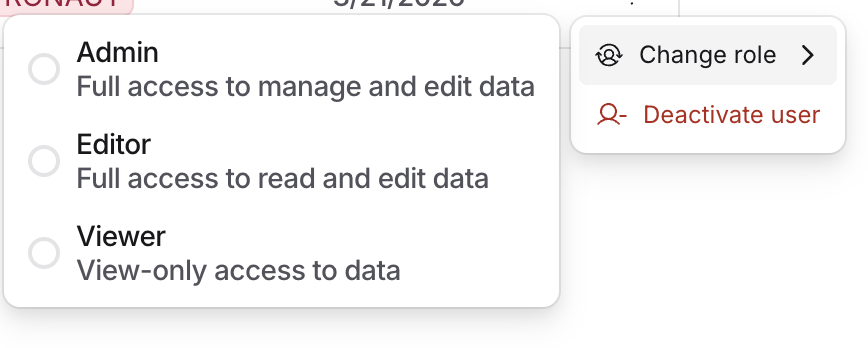
Role | Description | Permissions |
|---|---|---|
Admin | Full access to manage and edit all data, settings, and team members. | Full |
Editor | Full access to read and edit data, but cannot manage team settings. | Read + Edit |
Viewer | View-only access to data. Cannot make changes. | Read Only |